
Veterans Email Program
Setup Instructions
Your Veteran email works in any mail app. The settings are published for every branch domain, so most phones and computers set themselves up. You usually only need your email address and your password.
- Add an account in your mail app and choose “Other” or “IMAP” if it asks.
- Type your full Veteran email address and your password. Nothing else.
- Let it finish. The app looks up our settings automatically. If it still asks for server details, use the settings below.
Tap a topic to open it.
Log in to WebmailWhere to sign in, and what to do if your password will not work
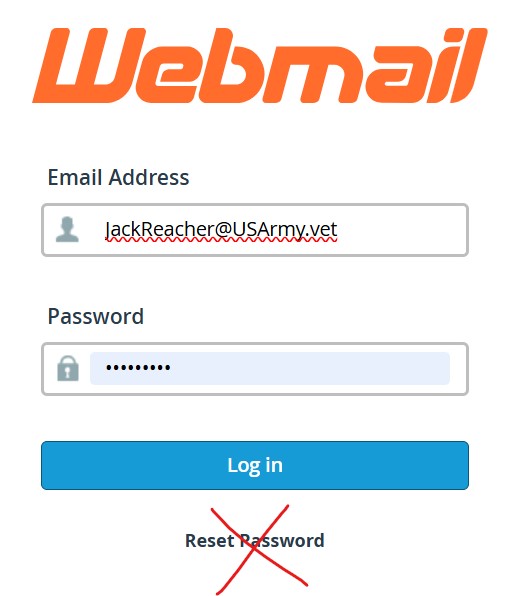
Fill out the form with your new email address and the password sent to your recovery email address.
- Make sure there are no blank spaces after your email address or password. This is a common problem if you copy and paste from the email.
- Pro tip: Don’t ever use the Password Reset underneath the webmail form. IT DOES NOT WORK. We have a much easier solution you can find at https://www.vmail.vet/login.
Add your email to your phone or computerStep-by-step for iPhone, Android, Outlook, Thunderbird, and Apple Mail
Type your address and password and let the app do the rest. Here is where to start on the common apps.
Settings, then Mail, then Accounts, then Add Account, then Other, then Add Mail Account. Enter your name, address, and password. Mail finds the settings itself.
Open Gmail, tap your picture, then Add another account, then Other. Enter your address, tap Next, choose Personal (IMAP), and enter your password.
File, then Add Account, type your address, and choose IMAP if it asks. Enter your password when prompted.
Add an account, enter your name, address, and password, and accept the settings it finds. Choose IMAP, not POP, if offered.
Pro tip: ALWAYS use IMAP/SMTP and some security SSL/TLS. IMAP keeps your mail on the server so every device sees the same inbox.
iPhone and iPad: one-tap setup fileDownload a file that sets up your mail, calendar, and contacts together
Open this page in Safari on your iPhone or iPad, type your address, and tap the button. Your device sets up your mail, calendar, and contacts together and asks for your password.
- Tap Allow when Safari asks, then Close.
- Open Settings and tap Profile Downloaded near the top, then Install.
- Type your email password when asked. Your phone asks once each for mail, calendar, and contacts.
You will see “Not Signed.” That is normal. We do not use an Apple developer certificate. The file holds only your address and our server names, never your password, and you can remove it any time in Settings, General, VPN & Device Management.
Android or another calendar app? Calendar and contacts use the standard CalDAV and CardDAV methods. Apps such as DAVx5 can look up the settings from your email address. If an app asks, use your own branch domain, such as usarmy.vet, as the server, port 2080 with SSL, and your full email address as the username.
Server settings to type in by handThe exact server names, ports, and security choices if your app asks for them
Use the mail server for your own branch domain. Your username is always your full email address.
| Username | Your full email address, for example JohnSmith@USArmy.vet |
|---|---|
| Password | Your email password |
| Incoming (IMAP) server | mail. plus your branch domain, for example mail.usarmy.vet |
| Incoming port and security | 993, SSL/TLS |
| Outgoing (SMTP) server | Same as incoming, for example mail.usarmy.vet |
| Outgoing port and security | 465, SSL/TLS, authentication required with the same username and password |
Space Force addresses end in usspace.force.vet, and the server is simply usspace.force.vet, with no “mail.” in front.
A tour of the Webmail home pageWhat the buttons do and where the phone setup tools are
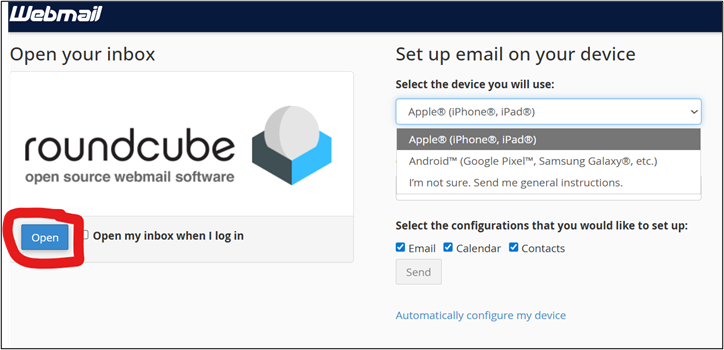
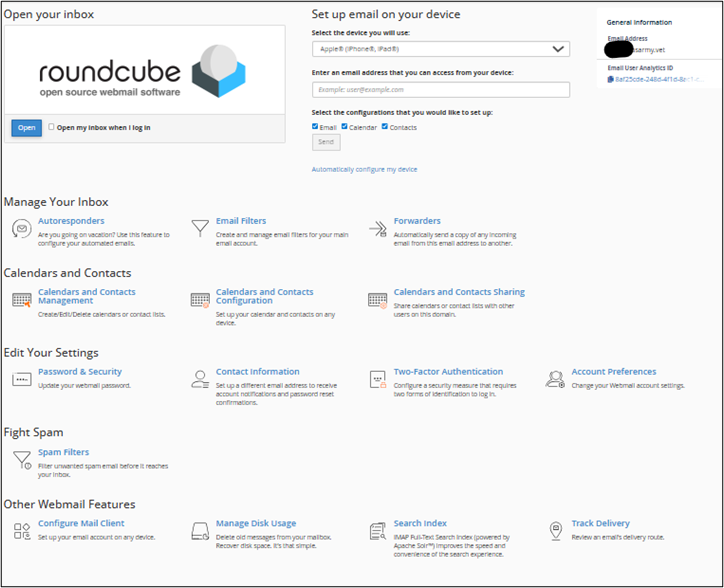
When you login, you will be taken to this page. This page has all of the setup and settings you need.
- If you want to go straight to read your email, simply hit the OPEN button.
Notice all of the settings and customization options are listed lower in the page.
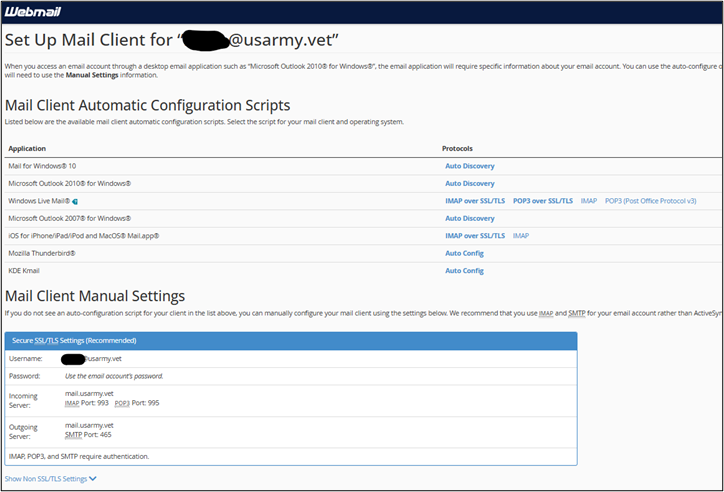
The Configure Mail Client option at the bottom left of that page lists applications like Outlook, Thunderbird, and iOS, and can hand your phone a ready-made profile.
Phone instructions are to the right of the roundcube logo.
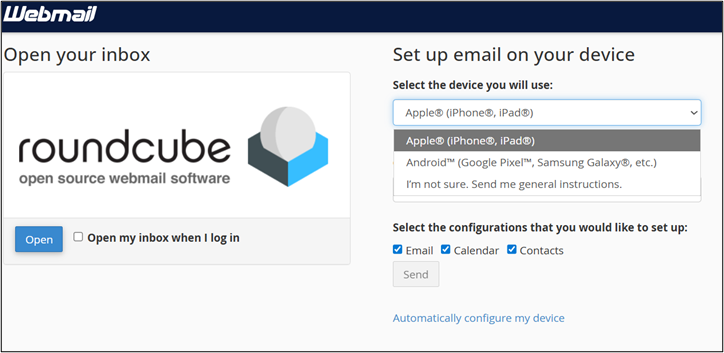
Get more out of WebmailOut of office, forwarding, filters, calendar, contacts, and archive
Your Veteran inbox already includes the tools below. Open Settings in the left menu of Webmail to find the first three.
Open Settings, then Out of Office. Turn it on, write your message, and pick the dates. Anyone who writes to you gets an automatic reply.
Open Settings, then Forwarding. Add the address that should get a copy of your mail, and choose whether to keep a copy here too.
Open Settings, then Filters. Make a rule, such as moving everything from one sender into its own folder, and your mail sorts itself.
Use the Calendar and Contacts buttons in the left menu to keep events and people next to your mail. You can import a calendar file or a contacts file from another account.
The Archive button files a message away without deleting it. Mark as Junk moves a message out of your inbox and teaches the spam filter.
Build one in under a minute with the Signature Builder, then paste it under Settings, then Identities.
Change your password and add a second login stepChoose your own password and protect your account with two-factor sign-in
When you are logged in and you need to change your password to something you choose, go to the Password and Security page from the main options page.
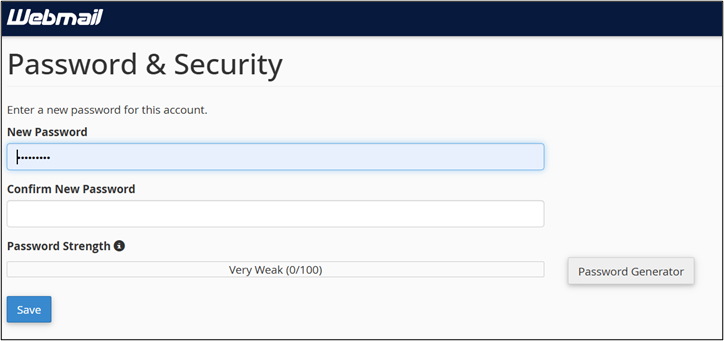
Notice: You can set up Two Factor Authentication (2FA). I have it on my own account. It works for web access to the Webmail system, so when you want to login online, you have to put in a code. However, it doesn’t interfere with the applications you have on your phone or computer.
Add a Veteran signature to your messagesA free builder that makes a ready-to-paste signature in about thirty seconds
Your address says you served. A signature says it with authority. The free signature builder puts your name, branch, and .vet address into a clean block you paste into Webmail, Outlook, Apple Mail, or the Gmail app in about thirty seconds.
Free add-on
Veteran Email Signature Builder
Pick your branch, type your name, copy, paste. No rank, no years of service, just a verified Veteran address. The page also shows exactly where the signature box is in each mail app.